Android app
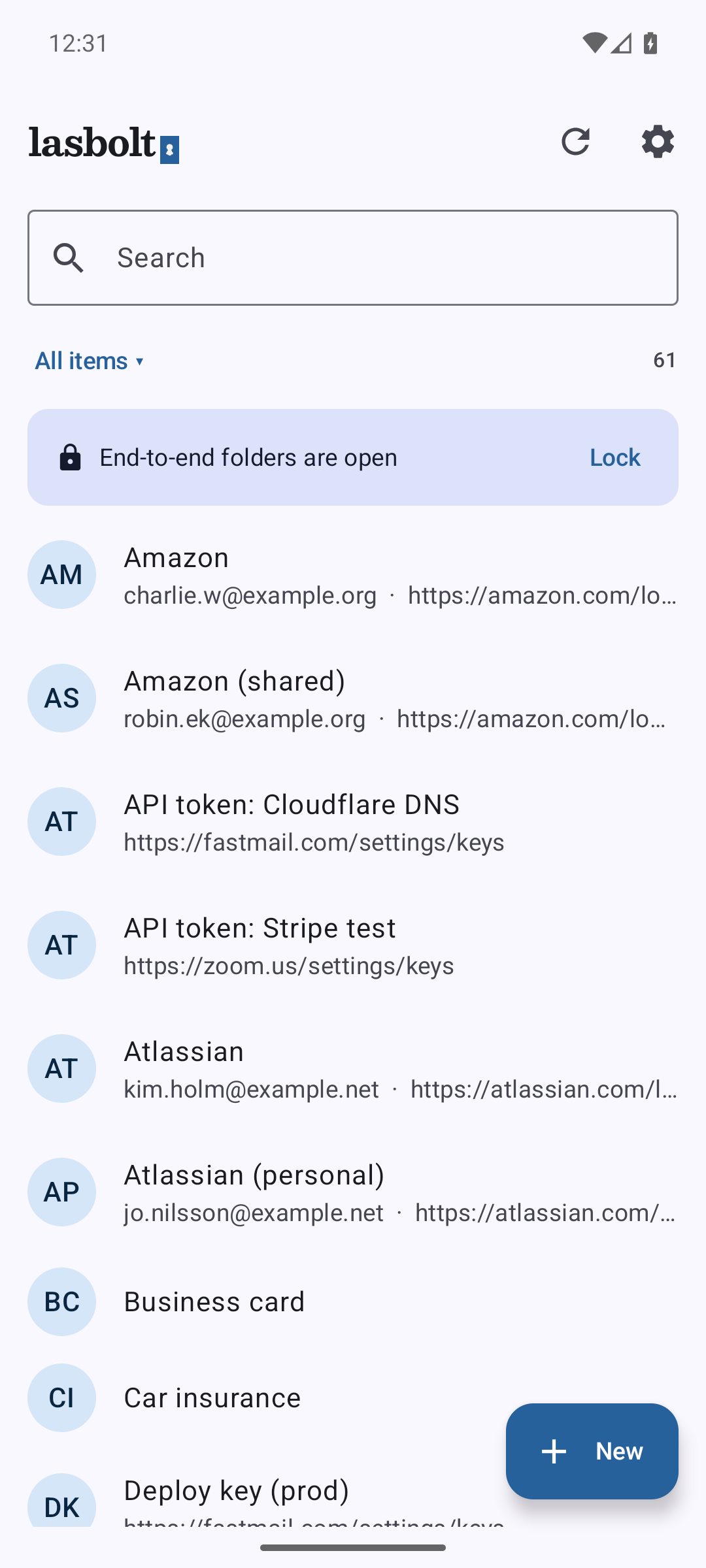
The Android app keeps a local copy of your vault on the phone. You can view, make, change and delete items. It fills logins in browsers through the Android autofill service. It unlocks E2E folders with a fingerprint or face. It lets you approve requests from programs.
Install from source
The app needs Android 11 or later. The build is for arm64 only (all current phones, and the emulator on Apple silicon).
You need a JDK 21, the Android SDK, Go and make. DEVELOPMENT.md (“Android”) has the one-time setup with brew and sdkmanager. See Build and test.
Build
make androidThe command builds the lasbolt helper that the app carries, and a debug APK in android/app/build/outputs/apk/debug/.
Install
Connect a phone with USB debugging on, or start the emulator with make android-emulator. Then run:
make android-installWith more than one device, choose one with ANDROID_DEVICE=usb or ANDROID_DEVICE=emulator, or with ANDROID_SERIAL=<serial>. make android-devices lists them. A phone on Wi-Fi: pair it with adb pair, then make android-connect ADDR=<ip>:<port>.
make android-run installs and also starts the app. make android-uninstall removes it.
Turn on “Block screenshots”
A debug build lets screenshots show secrets. In the app, open Settings, then Security, and turn on “Block screenshots”.
Sign in
You need a server first. See Install a server.
- In the web app, open Settings, then Devices, and choose “Add a phone”.
- In the app, tap “Scan a QR code” and scan the code.
- The app shows a code. Compare it with the web page, then approve there.
The QR code works once and ends after 10 minutes.
A link lasbolt://connect?server=https://… opens the app with the server filled in. A server that you reach through a VPN on plain http needs “Allow plain http” on the sign-in screen.
Turn on autofill
Choose Lasbolt as the autofill service
Open the app, then Settings, then the Autofill group. Tap “Turn on”. Android opens its list of autofill services. Choose Lasbolt.
Turn on autofill in Chrome
Chrome needs one more step. In Chrome, open Settings, then Autofill services, then “Autofill using another service”. This needs Chrome 135 or later. The app shows the same steps under “Chrome needs one more step”.
Firefox uses the system service and needs no setting.
Fill a login
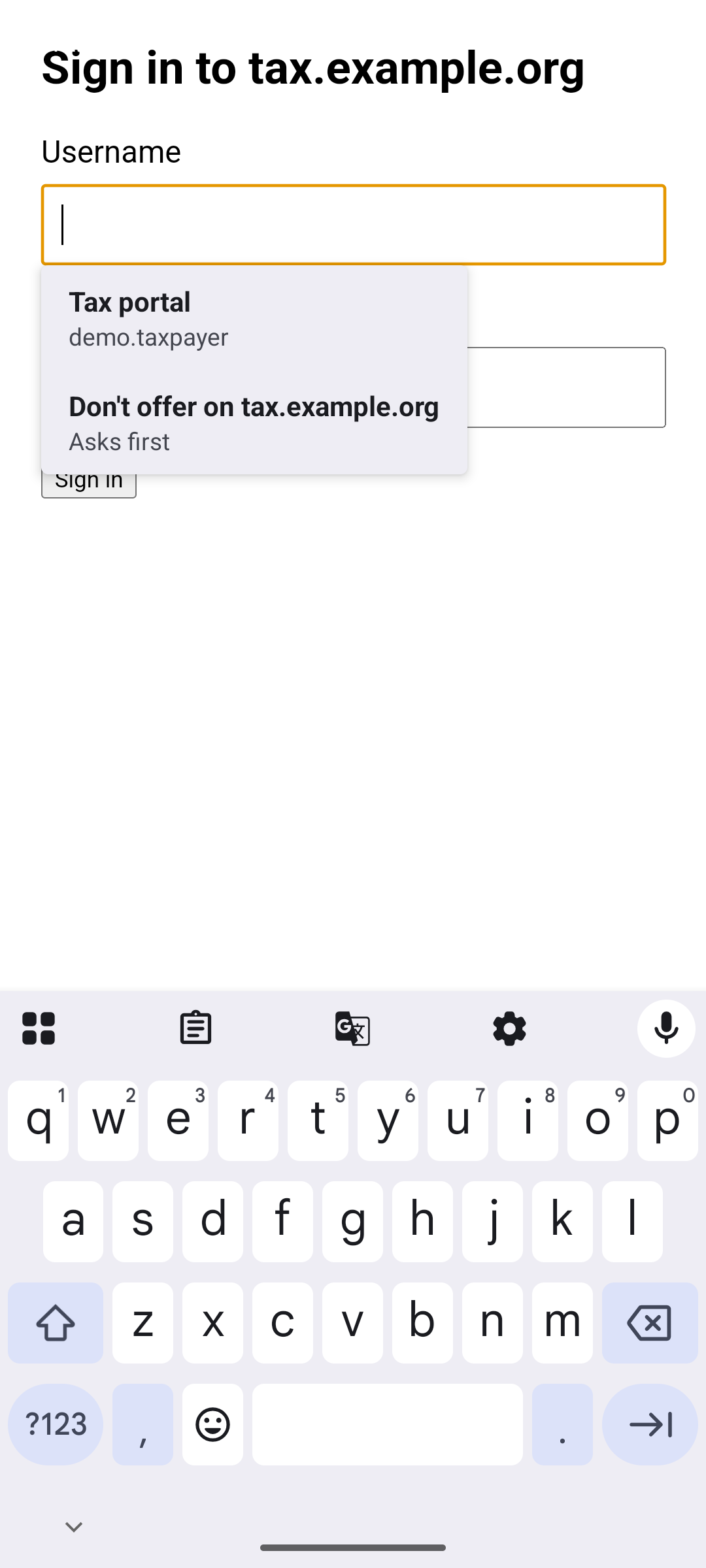
Tap a username or password field on a web page. A drop-down (or the keyboard strip) shows the matching items by name and user name. Tap one. If the item asks for approval, Lasbolt waits for you to approve it in the web app.
Rules:
- Lasbolt fills only in browsers that it trusts: Chrome, Firefox, Samsung Internet, Brave, Edge, Vivaldi and DuckDuckGo. It checks the signature of the browser. In other apps it offers nothing.
- A value goes to the page only after you pick a dataset. The list shows names only.
- If the vault is locked, the drop-down shows “Unlock Lasbolt”. Tap it, unlock, and the fill goes on.
- Items in E2E folders fill after you unlock them.
- “Don’t offer on
” in the drop-down turns autofill off for that site. Settings, then “Sites with autofill off”, shows the list and turns it on again. - When you sign in to a new site, or change a password, Android can show a Lasbolt save sheet. Pick where to save it.
- Lasbolt also fills one-time codes and payment cards, and offers a strong password for a new account.
Unlock with a fingerprint or face
- Open Settings, then “Biometric unlock”. The group shows when your vault has an E2E folder.
- Turn on “Unlock with biometrics”. Type your master password once. Then confirm with your fingerprint or face.
The unlock dialog then opens the prompt by itself. A cancel leaves the password field.
Android asks for the master password again in these cases:
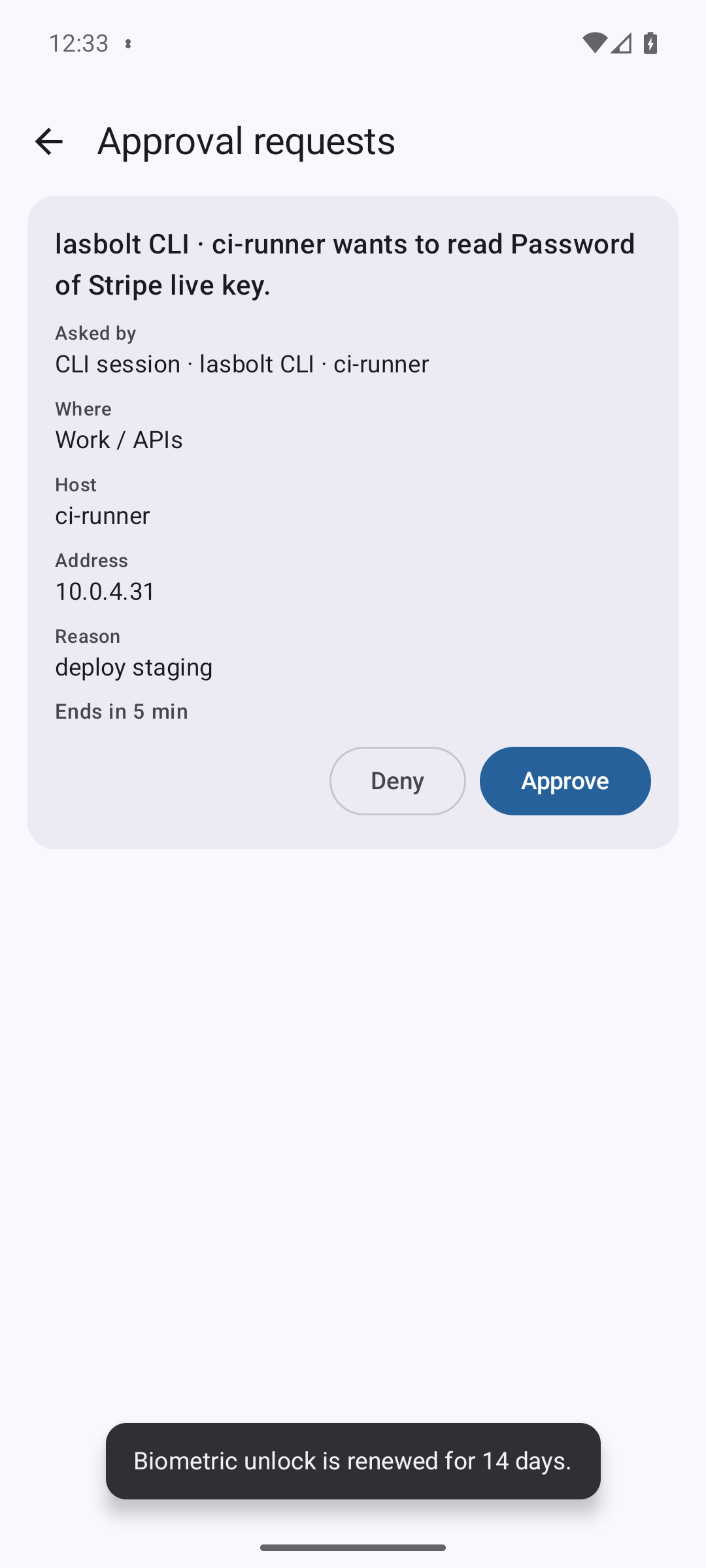
- 14 days passed since you typed it.
- You added a new fingerprint or face.
- You changed your master password.
The switch is grey when no strong biometric is set up. Add one in the Android settings first. A QR or browser sign-in has no biometric unlock. Sign in with the master password to use it.
Approvals
An item can ask before each use. The app looks for requests while it runs and when it syncs: every 15 seconds in front, and every 60 seconds in the background. Android can stop the app, so a request can come late. There is no push service yet.
- The app shows a banner in the vault list, “1 approval request waits”, with “Review”.
- A notification, “Approval request”, has a Deny button and no Approve button.
- To approve, open the request and tap “Approve”. Android asks for your fingerprint, face or screen lock.
- Only a password login can decide. An E2E item that needs a new key must be approved in the web app.
Settings
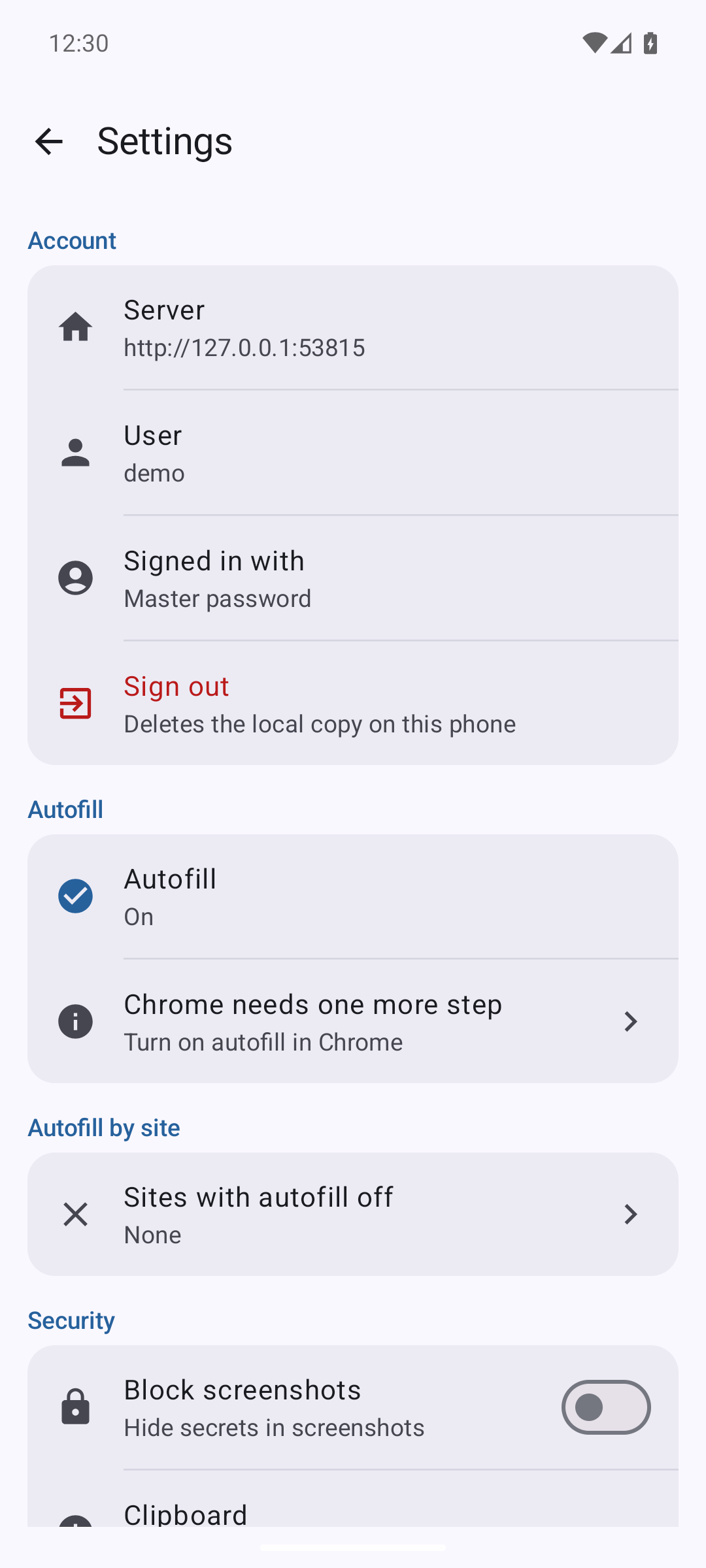
Settings has these groups: Account (server, user, type of sign-in, “Sign out”), Autofill, Autofill by site, Security (Block screenshots, clipboard, E2E folders, Lock and Unlock), Biometric unlock, Approval requests and About. A copied value leaves the clipboard after 30 seconds. “Sign out” deletes the local copy on the phone. Your data stays on the server.
Limits
- The app needs the network for its first sync. After that it works offline from its local copy. A change waits until the server is reachable.
- Autofill does not work in other apps, only in the browsers in the list above.
- There is no browser extension on Android. Chrome for Android has no extensions, and Firefox for Android cannot use the native host.