iOS app
The iOS app keeps a local copy of your vault on the iPhone. It fills passwords in Safari and in apps through iOS AutoFill. It unlocks E2E folders with Face ID. It lets you approve requests from programs.
Install from source
You need a Mac with Xcode (with the iOS 26 SDK), xcodegen, Go and make.
No Apple account is needed.
make ios-runThe command builds the Go core, builds the app, and starts it on the iPhone simulator.
The app is for iPhone only.
Sign in
You need a server first. See Install a server.
- In the web app, open Settings, then Devices, and choose “Add a phone”. The page shows a QR code.
- In the iPhone app, tap “Scan a QR code” and scan it. (The button shows only when the iPhone can scan.)
- The iPhone shows a code. The web page shows the same code. Compare them, then approve in the web app.
The QR code works once and ends after 10 minutes.
A link of the form lasbolt://connect?server=https://… opens the app with the server filled in. The page https://<server>/app has such a button.
Use the app
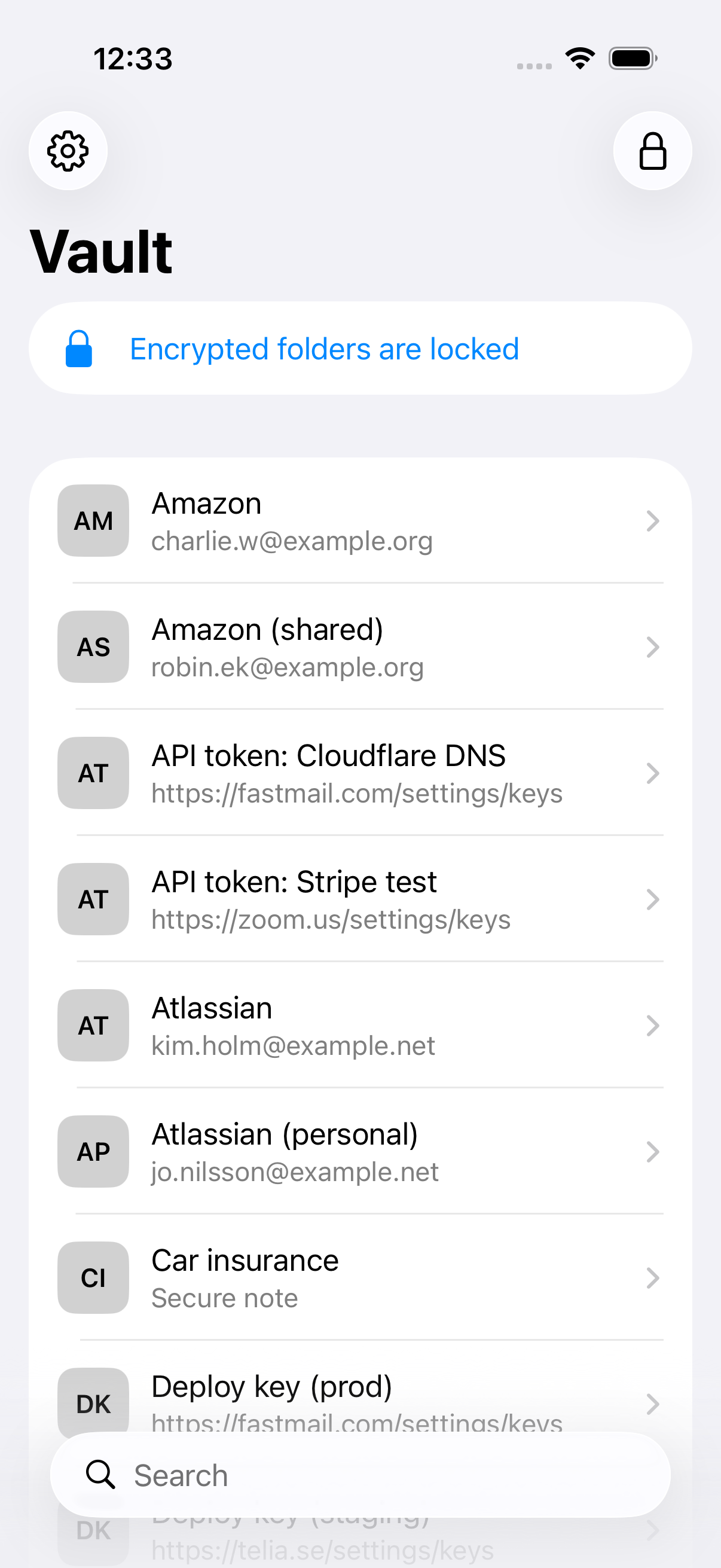
The app has a vault list with search, and an item view. The item view is read only: you can reveal and copy values, but you cannot make or change items. Use the web app or lasbolt for that. A copied value leaves the clipboard after 30 seconds and does not go to other devices.
To open an E2E folder, the app asks for your master password, or Face ID.
When the app is not active, it covers its window, so the app switcher shows no secret.
Turn on AutoFill
Open the app and sign in
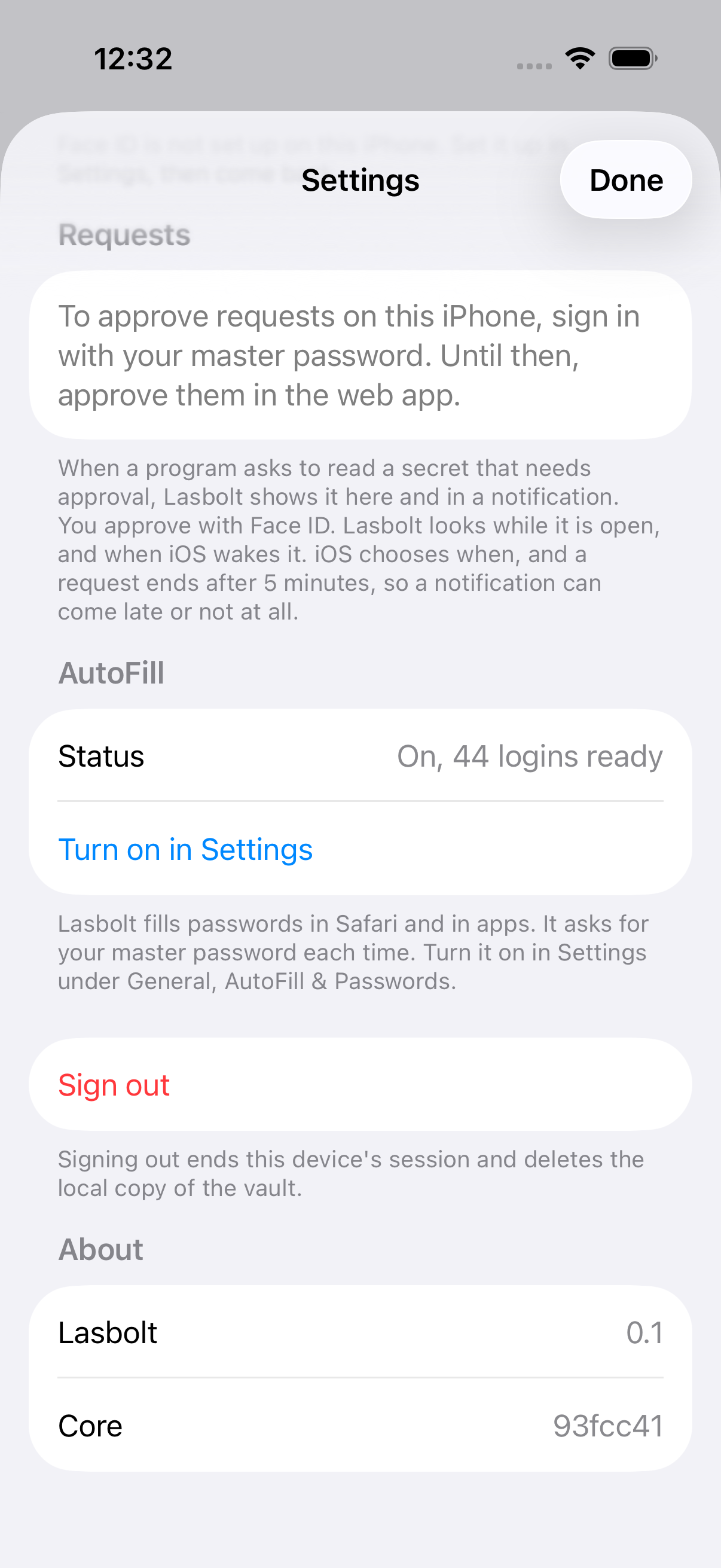
Settings in the app (the Done button closes it) shows the AutoFill status, for example “On, 44 logins ready”.
Turn on Lasbolt in iOS
Open the iOS Settings app. Go to General, then AutoFill & Passwords. Turn on “Lasbolt”. Turn off other providers if the list is long. The button “Turn on in Settings” in the app takes you to the iOS Settings app.
Fill in Safari
Tap a login field. Tap the suggestion above the keyboard, or tap the key icon and choose Lasbolt. Lasbolt asks for your master password or Face ID. Then it fills.
How it works and its limits:
- The app writes a read-only copy of your logins to a shared file that is encrypted. The extension reads that file. It never opens your vault.
- It does not fill items in E2E folders. It does not fill items that ask before each use, or cards.
- It has no passkeys and no one-time codes.
- The master password only opens the screen of the extension. Use Face ID to be faster.
- A password change on another device reaches the extension after 24 hours at the latest.
Face ID
- In the app, open Settings and turn on “Unlock with Face ID” in the Security section.
- Type your master password once, then confirm with Face ID.
The unlock sheet then shows “Use Face ID”. It works for a sign-in with the master password, and for a QR or browser sign-in.
The app asks for the master password again in these cases:
- 14 days passed since you typed it.
- You added a new face.
- You changed your master password.
The same rule applies in the AutoFill extension. Face ID has no passcode fall back in Lasbolt: type the master password.
Approvals
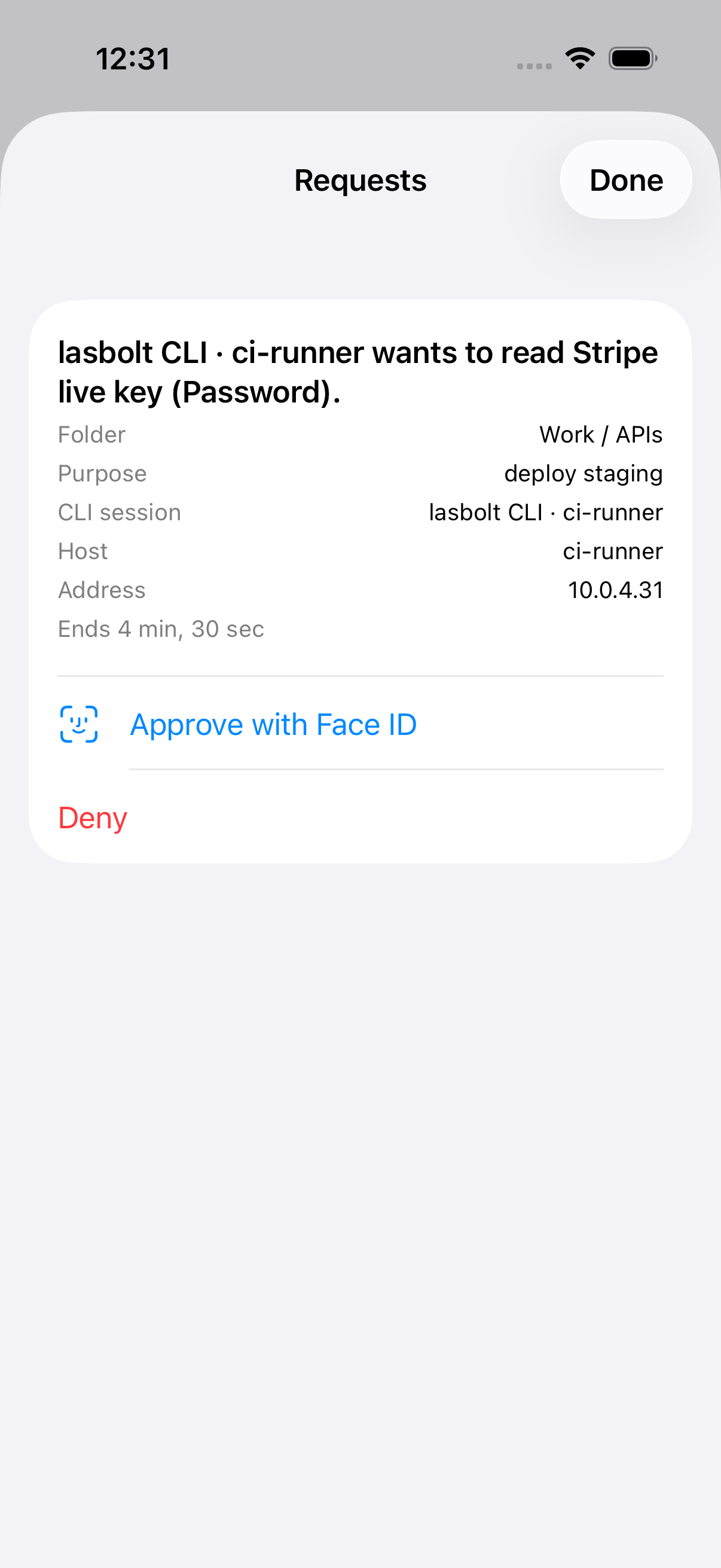
An item can ask before each use. When a program asks to read it, the app shows a request with the program, the item, the folder, the purpose and the time left. You approve with Face ID, or deny.
- Only a password login can decide. A QR or browser sign-in cannot. Settings then says to sign in with the master password, or to approve in the web app.
- Alerts. Turn on “Notify me about requests” in Settings. The notification has a Deny button and no Approve button. Tap it to approve in the app.
- Delivery is slow. The app looks every 5 seconds while it is open. iOS wakes it from time to time, and chooses when. A request ends after 5 minutes. So a notification can come late or not at all. There is no push service yet.
- E2E items that need a new key cannot be approved on the iPhone. The app says to approve in the web app.
Sign out
Settings, then “Sign out”, ends the session of this iPhone and deletes the local copy of the vault, the AutoFill copy and the Face ID item.