Shared spaces
Use a shared space to share folders with other people on your server. The members of a shared space share its end-to-end encrypted (E2E) folders. The server cannot read them.
Before you start
- Everyone must have an account on your server. A space admin adds existing users only. To bring a new person, an instance admin makes an invitation first (see below).
- You must unlock E2E in the web app. The page asks for your master password if the tab is locked.
- You need a way to talk to the other person that you trust: in person, or a call where you know the voice.
Roles
| Space role | Can do |
|---|---|
use | Fill and run with a secret. Cannot reveal it in a screen or read it with lasbolt read. |
reader | Read items. |
writer | Read and change items. |
admin | Also add and remove members and change their roles. An admin cannot change another admin, except to remove itself. |
owner | Also add, change and remove owners. The last owner cannot leave. |
The effective role is the highest of the direct membership and the memberships through teams.
use is not encryption. A use member holds the folder key, and a client enforces the limit. Give use to a person you trust not to run a modified client.Do not confuse space roles with instance roles (owner, admin, member). An instance role manages users on the server. It gives no access to the content of a space.
Make a shared space
Start
Click + next to SPACES in the sidebar. The dialog New shared space opens.
Name it
Enter a Name and click Create space. You become the owner. The space starts with no members.
Make a folder
Make a folder in the space. Every folder in a shared space is end-to-end encrypted.
Add a member
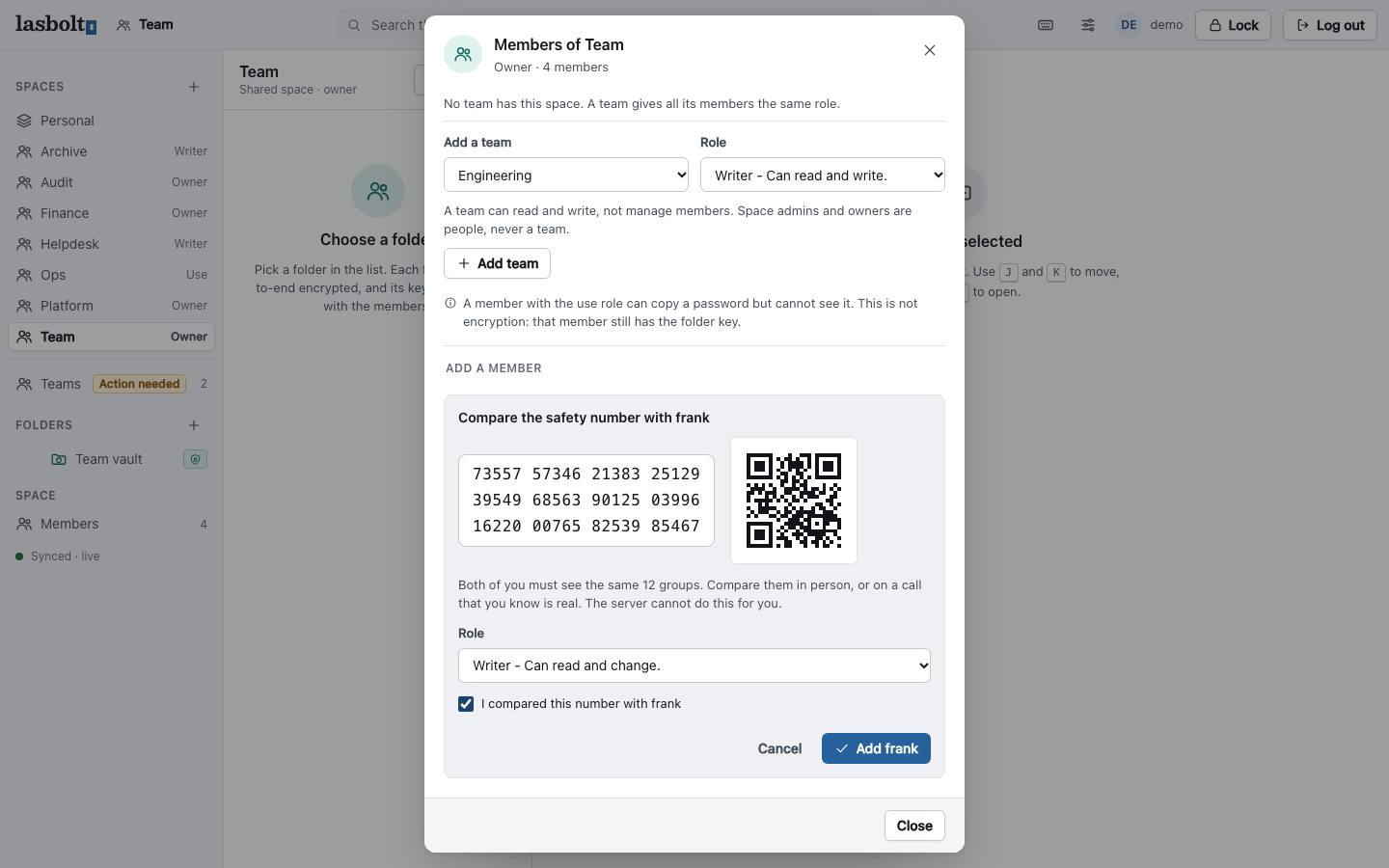
Click Members in the header of the space. Enter the exact username and click Look up. Then compare the safety number.
Look up the user
The client asks the server for the public keys of the user.
Compare the safety number
The dialog shows 12 groups of 5 digits and a QR code. The other person sees the same number on their device. Compare the digits in person or on a call that you know is real. The server cannot do this check for you: it is the proof that the server did not swap the keys.
Choose the role
Pick a role.
Confirm
Tick I compared this number with
In the member list, Verified means that you compared the number. Not compared means that you trust the server for the first lookup. You can open Safety number for any member and compare it later.
The new member sees “waiting for access” until your client has sealed the folder keys to them. This happens when you add them, when your browser is unlocked.
    sequenceDiagram
  autonumber
  actor A as Admin
  participant AC as Admin client
  participant S as Server
  participant NC as New member client
  AC->>S: Look up the user (exact name)
  S-->>AC: Public keys of the user
  AC->>A: Show the safety number
  A->>AC: Compare in person or on a call, confirm
  AC->>AC: Sign the contact pin and the add entry
  AC->>S: Append add entry (seq = head + 1)
  S->>S: Check the rules, store the entry
  S-->>AC: Accepted
  AC->>S: Folder keys sealed to the new box key
  NC->>S: Read the log
  NC->>NC: Verify the chain and its own keys
The membership of a space is a chain of signed entries. The chain is the truth for clients. A client never trusts the server for a key. It trusts the signed chain and the contact pins of its own user.
What if two admins act at the same time?
The server accepts an entry only at the head of the chain. The second client gets 409 not_head. It builds its entry again on the new head, and the rules then refuse it if its author lost the role. So the server decides one order, and each admin sees the other entry first.
Invite a person who has no account
An instance admin or owner makes an invitation in Settings > Organisation. Click Invite, choose the role and the life of the link (1, 7 or 30 days), and send the link. The link works once. The server keeps only a hash of it, so it shows the link one time.
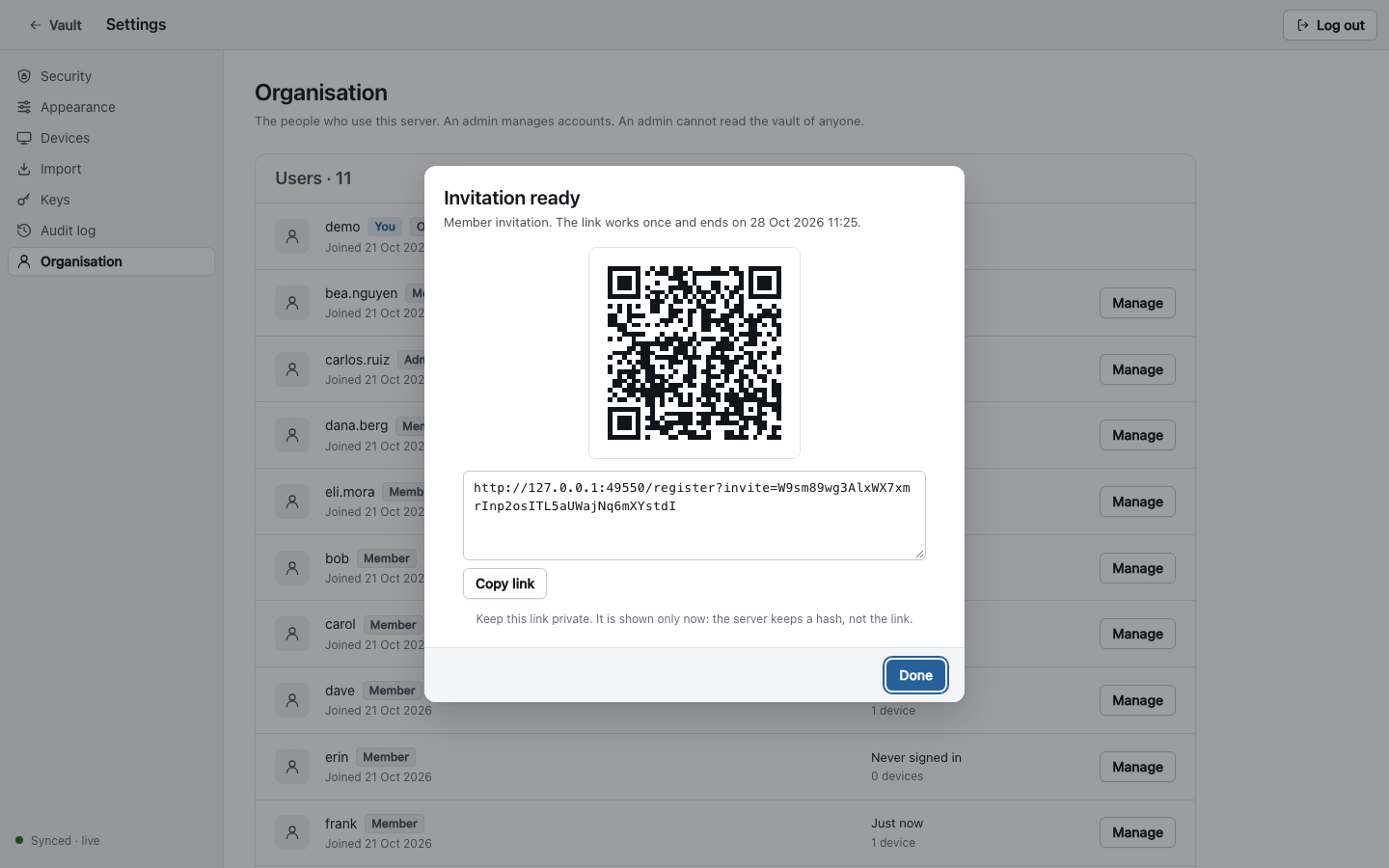
The new person opens the link, makes an account, and then a space admin adds them to a space with the steps above. The operator of the server can also run lasboltctl invite create. See First owner and users.
Change a role
Pick a new role in the list of the member. A change takes effect at its time stamp. Operations that the member made later with a lower role are dropped by clients.
Remove a member
Click the bin next to the member. The dialog tells you the cost: “N encrypted folders will get new keys.
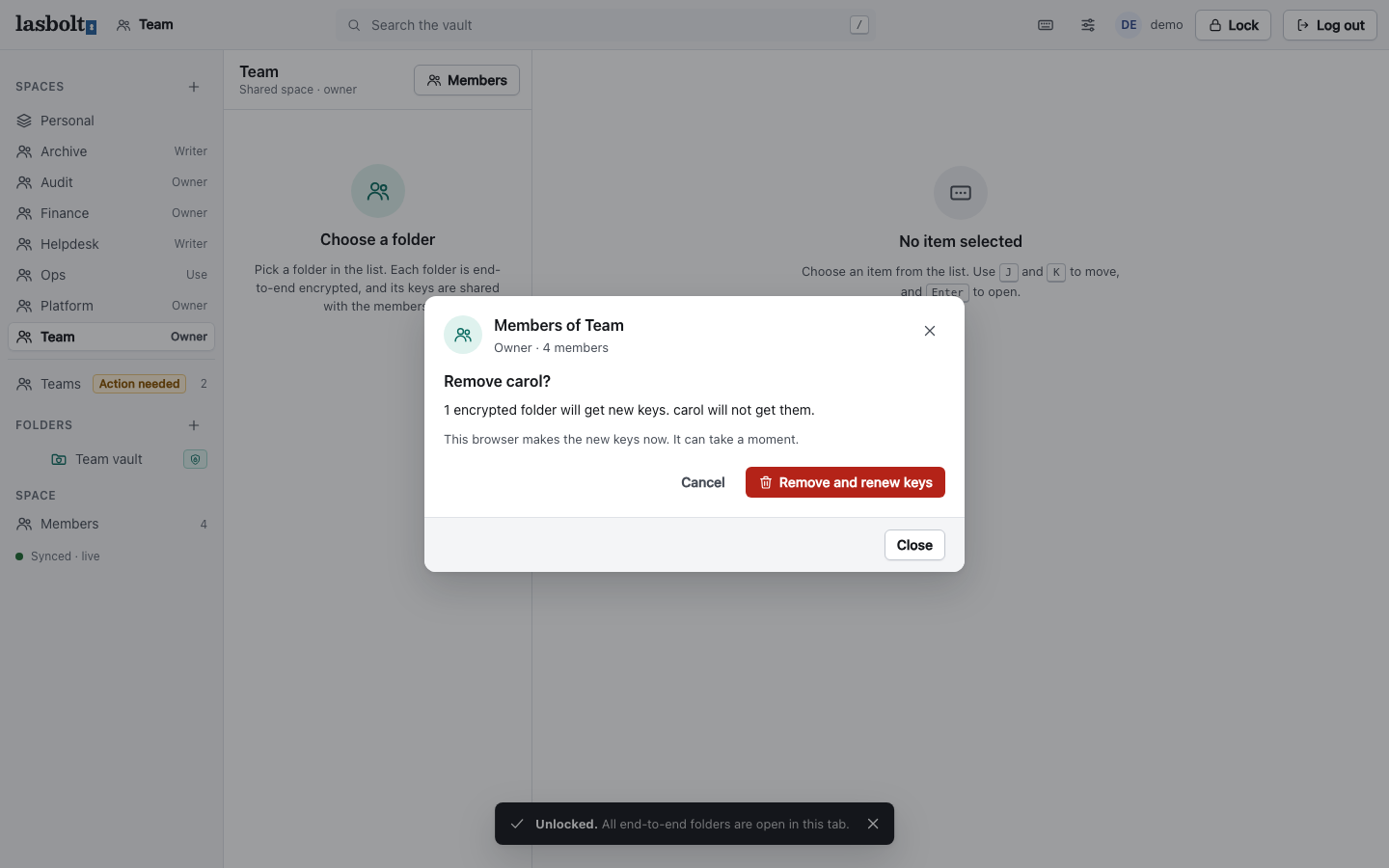
Your browser makes new folder keys now. It can take a moment. The removed person does not get the new keys.
If a re-key does not finish, an admin sees a banner, “N folders need new keys”, and the button Renew keys.
Leave a space
Click Leave in the member list. Any member can leave. The last owner cannot. Make another member an owner first.
When the keys of a member change
If the server operator resets the password of a member, that member gets new keys. Other members then see: “The keys of
Teams
A space can also have a team as a member. The team gets one role, at most writer. See Teams.