Web app
The web app is part of your Lasbolt server. You open the address of the server in a browser. You need no install.
Log in
Open the server
Open the address that your operator gave you. The server shows the login page.
Type your username and master password
Type your username and your master password. If you set up a second factor, the page asks for the code from your authenticator app.
The browser makes the keys from your master password. The server never gets the master password.
Create an account
Use “Create an account” on the login page. The server can limit this: an operator can close registration, or ask for an invitation link. See First owner and users.
Forgot the password
Use “Forgot your master password?”. You need your recovery kit. See Recovery.
A browser session ends after 12 hours without use, and after 7 days at most. Use “Log out” in the top bar to end it at once.
Unlock E2E folders
A folder with a lock mark is end-to-end encrypted. The server holds only its ciphertext. When you open it, the page asks for your master password. Type it and use “Unlock folder”.
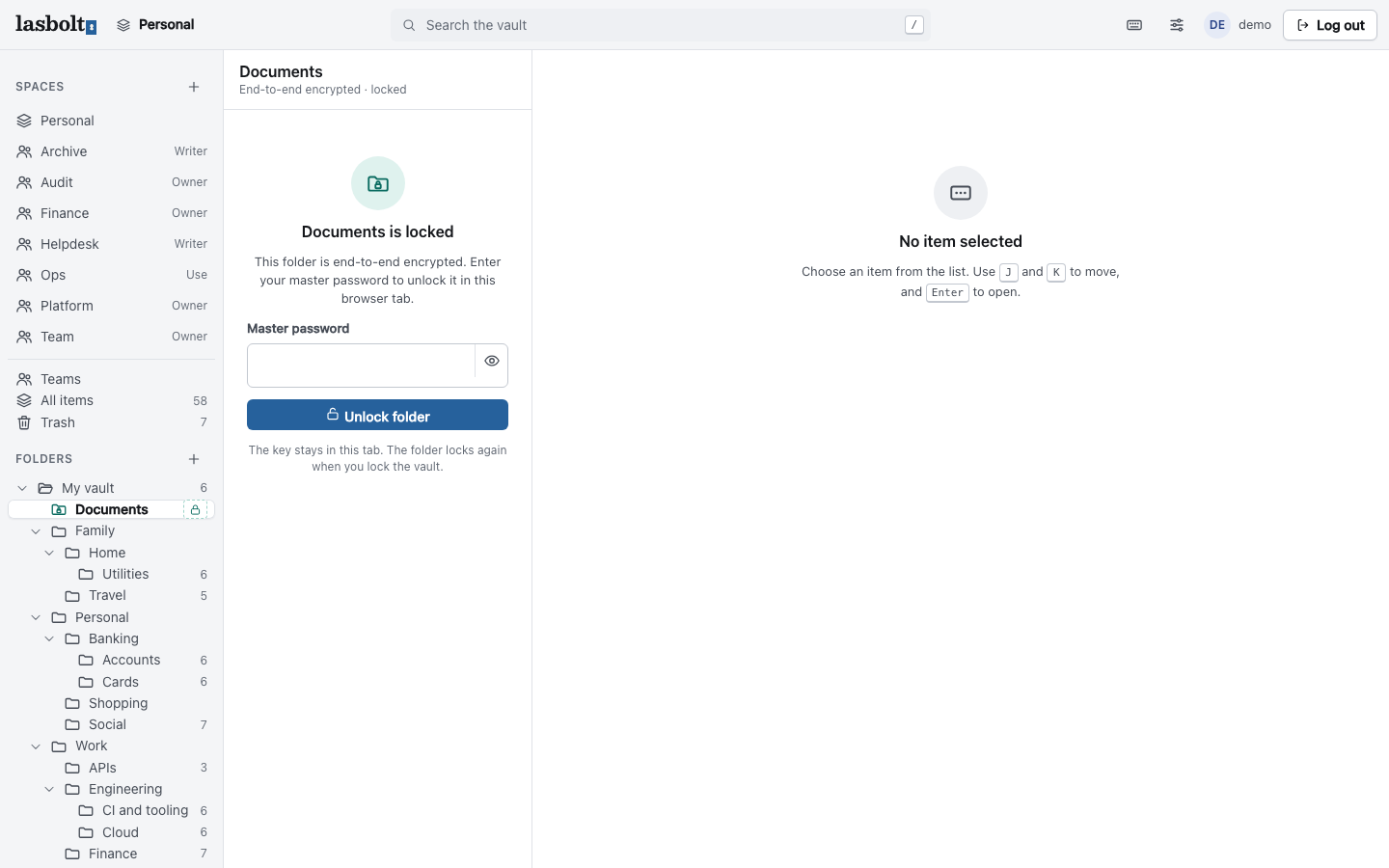
The key stays in the browser tab. These events lock the folders again:
- You use the Lock button in the top bar, or press
Ctrl+Shift+L. - You do not use the tab for 15 minutes.
- You log out.
A page reload does not ask again while the tab lives.
Items
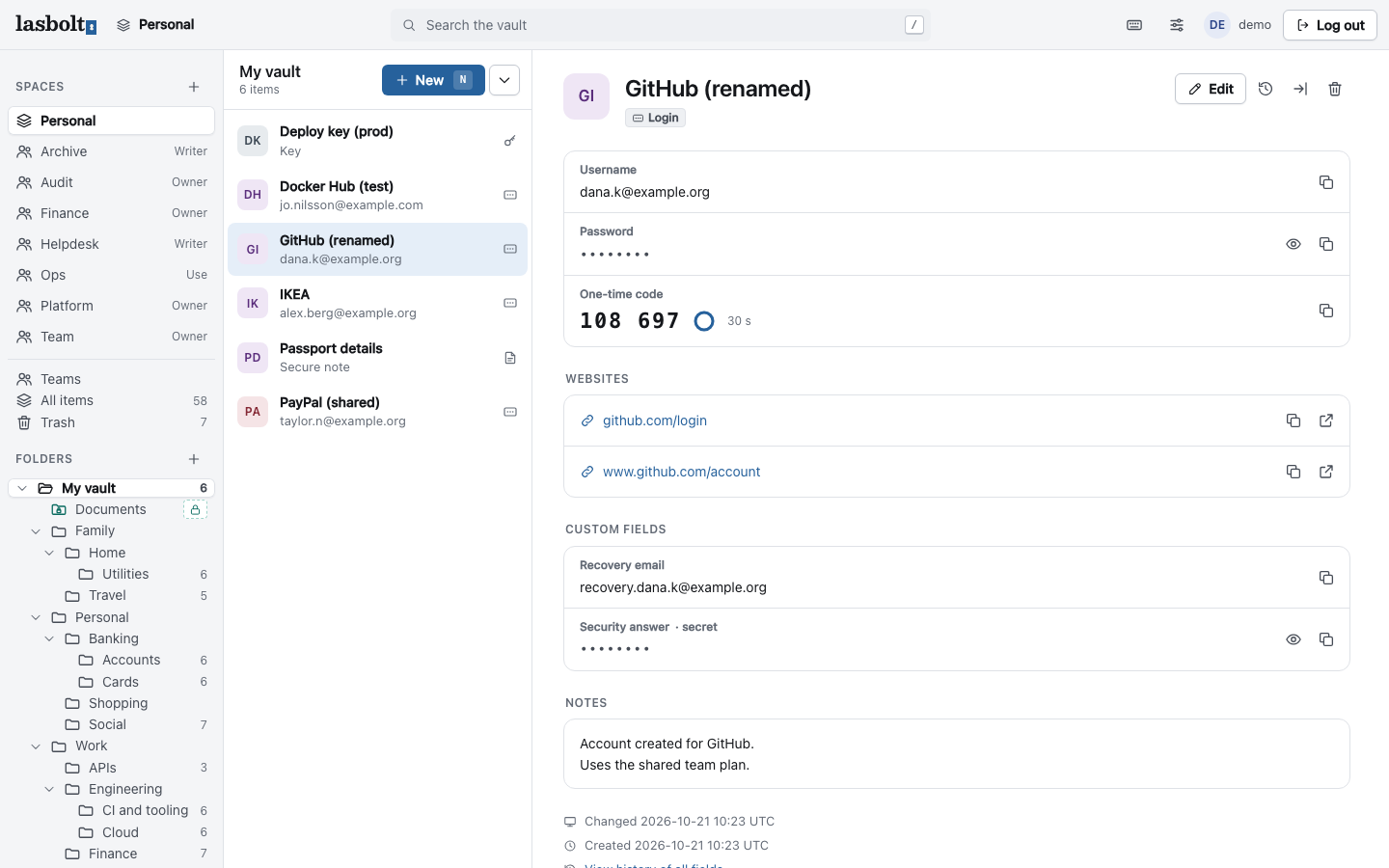
- Search. Press
/to search names, usernames and URLs. Search does not look into E2E folders that are locked. - Open an item. Click it in the list, or press
JandKto move andEnterto open. - Copy and reveal. Use the copy button next to a field. The eye button shows a secret field. On a phone, the bar at the bottom copies the username and the password.
- One-time code. An item with a TOTP key shows the six-digit code and the time left. Use the copy button.
- Make an item. Use “New” (or press
N). Choose the type: login, note, card or key. - Edit. Use “Edit”. The history icon shows the older values of the item.
- Delete. The trash icon moves the item to Trash. Trash is in the sidebar, and an item there can be restored.
Folders and spaces
Folders are in the sidebar. The plus button next to “Folders” makes a folder. You choose if it is a normal folder or an end-to-end folder. A normal folder can be read by the server. An E2E folder cannot.
A space is a set of folders that you can share. You always have the space “Personal”. The plus button next to “Spaces” makes a shared space. A space has members with roles, and it can reach a team. See Shared spaces and Teams.
Settings
The gear icon in the top bar opens Settings.
| Page | What it does |
|---|---|
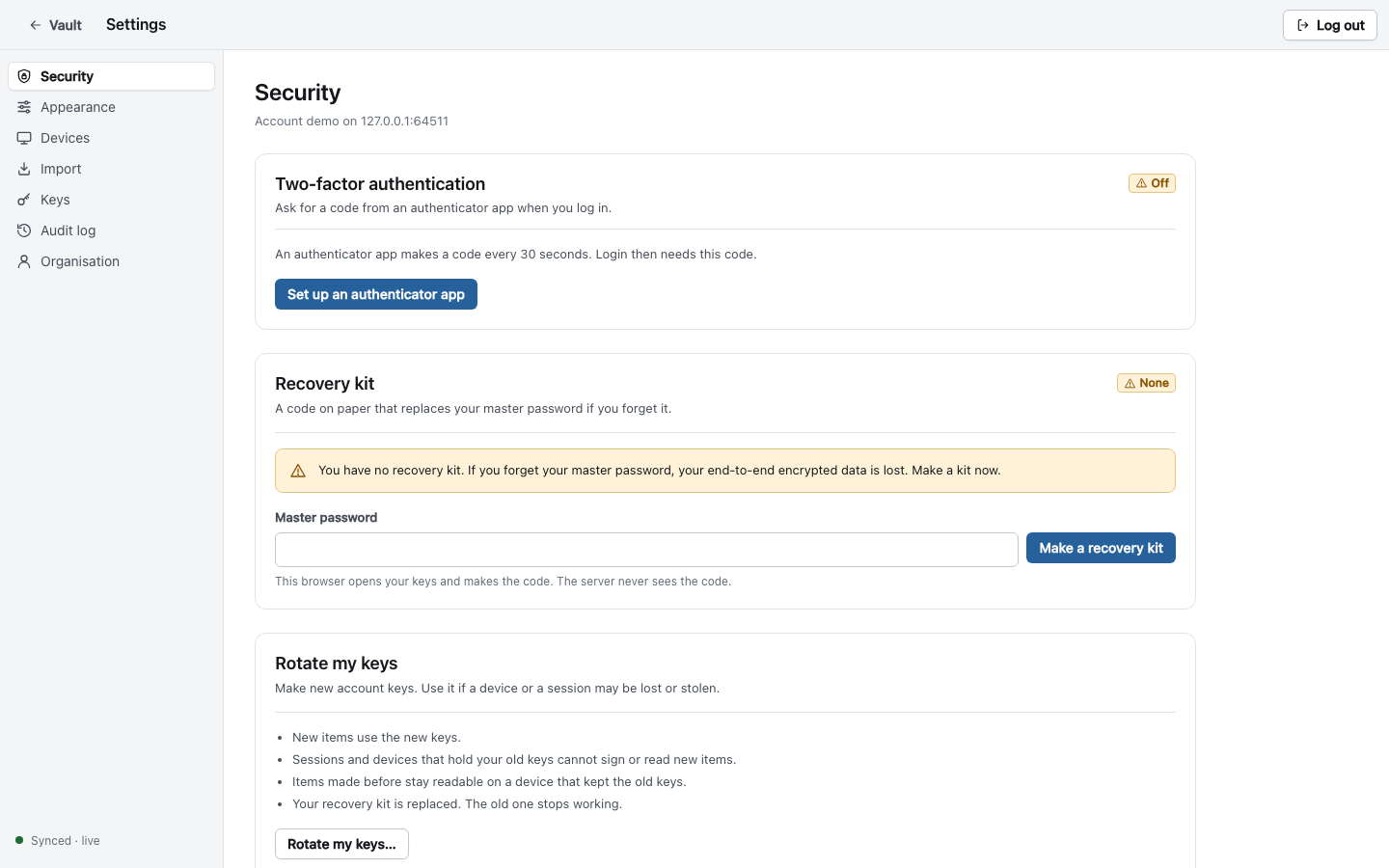
| Security | Two-factor authentication, the recovery kit, and “Rotate my keys” |
| Appearance | Follow system, light or dark theme for this device |
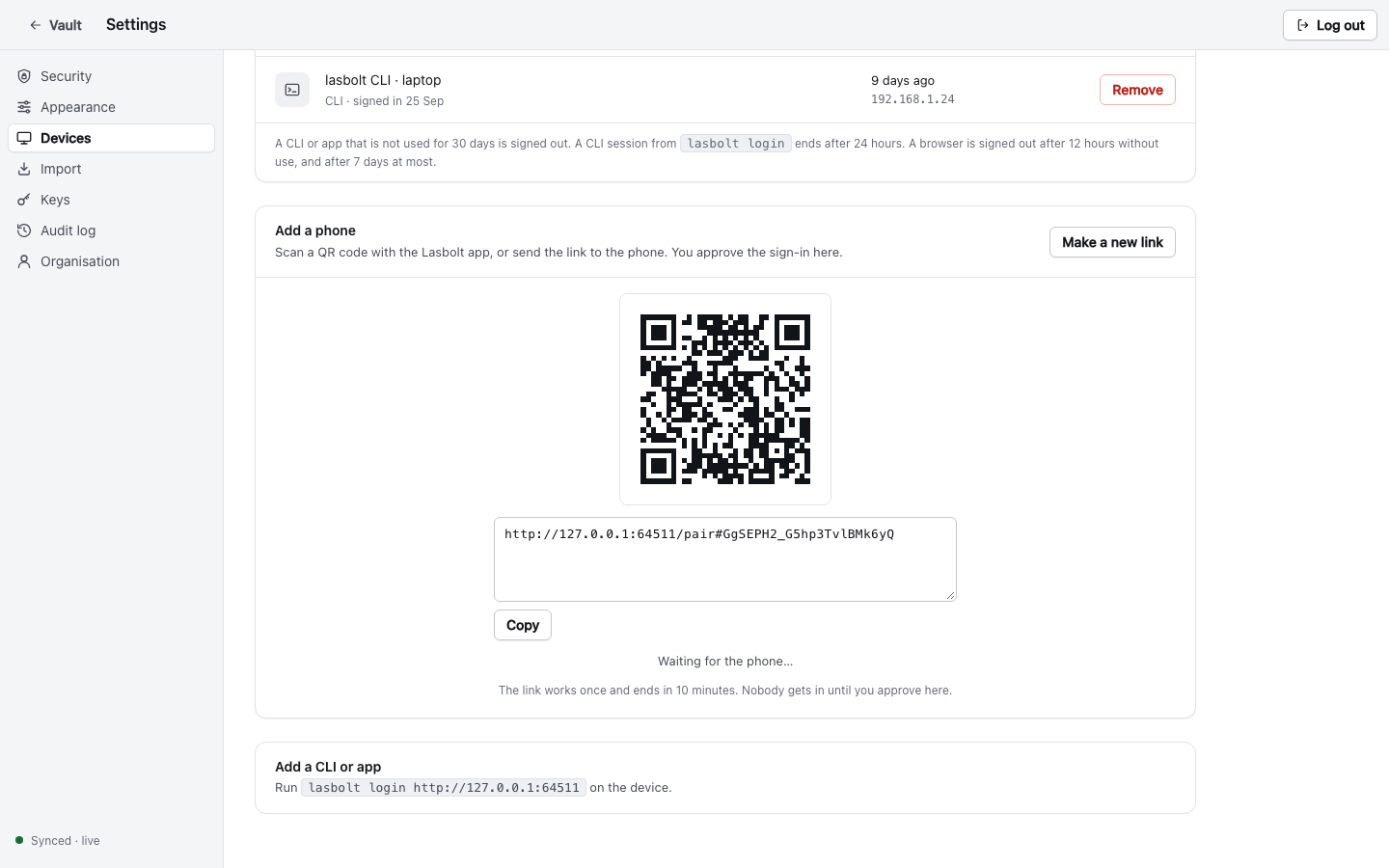
| Devices | The signed-in browsers, CLIs and apps. “Add a phone” and “Add a CLI or app”. |
| Import | Bring items from a Bitwarden export. See Import from Bitwarden. |
| Keys | Scoped keys for CI jobs and agents |
| Audit log | Who read what, and when (for admins) |
| Organisation | Users and invitations (for admins) |
Second factor
In Security, “Set up an authenticator app” shows a code to scan. Any TOTP app works. Scan it, type the first code, and the page turns the factor on. The web app has no hardware key or passkey support. A TOTP code is the only second factor.
Recovery kit
Make a recovery kit before you need it. If you forget your master password and have no kit, your E2E data is lost. See Recovery.
Add a device
In Devices, “Add a phone” shows a QR code and a link. The Lasbolt app scans the code. You then compare the code on both screens and approve in the web app. The link works once and ends after 10 minutes. See Devices and approvals.
Approvals
An item can ask before each use. When a program asks to read such an item, the web app shows a dialog. It names the program, the item and the host. Read it. Then allow or deny. See Devices and approvals.
Why the promise is weaker
An E2E folder is encrypted in your browser. The server stores only ciphertext. This is true for the apps and the CLI too. But in the web app the server sends the code that runs in your browser (JavaScript and WebAssembly). A server that is bad on purpose could send code that reads your E2E data after you unlock. The same is true for each E2E product that runs in a browser.
What this means for you:
- On a server that you trust and run, the web app is safe for daily use.
- The apps and the command line keep their own code. A bad server cannot change it. For the best protection, use them for E2E folders.
- A sign-in of an app or a CLI gets its keys from the web app. It has the same limit.
The threat model has the full list.
The web app does not work offline. It needs the server for each page.