Devices and approvals
A device is a browser, an app or a CLI that signed in to your account. This guide tells you how to add a device, how to approve a sign-in, and how to remove a device.
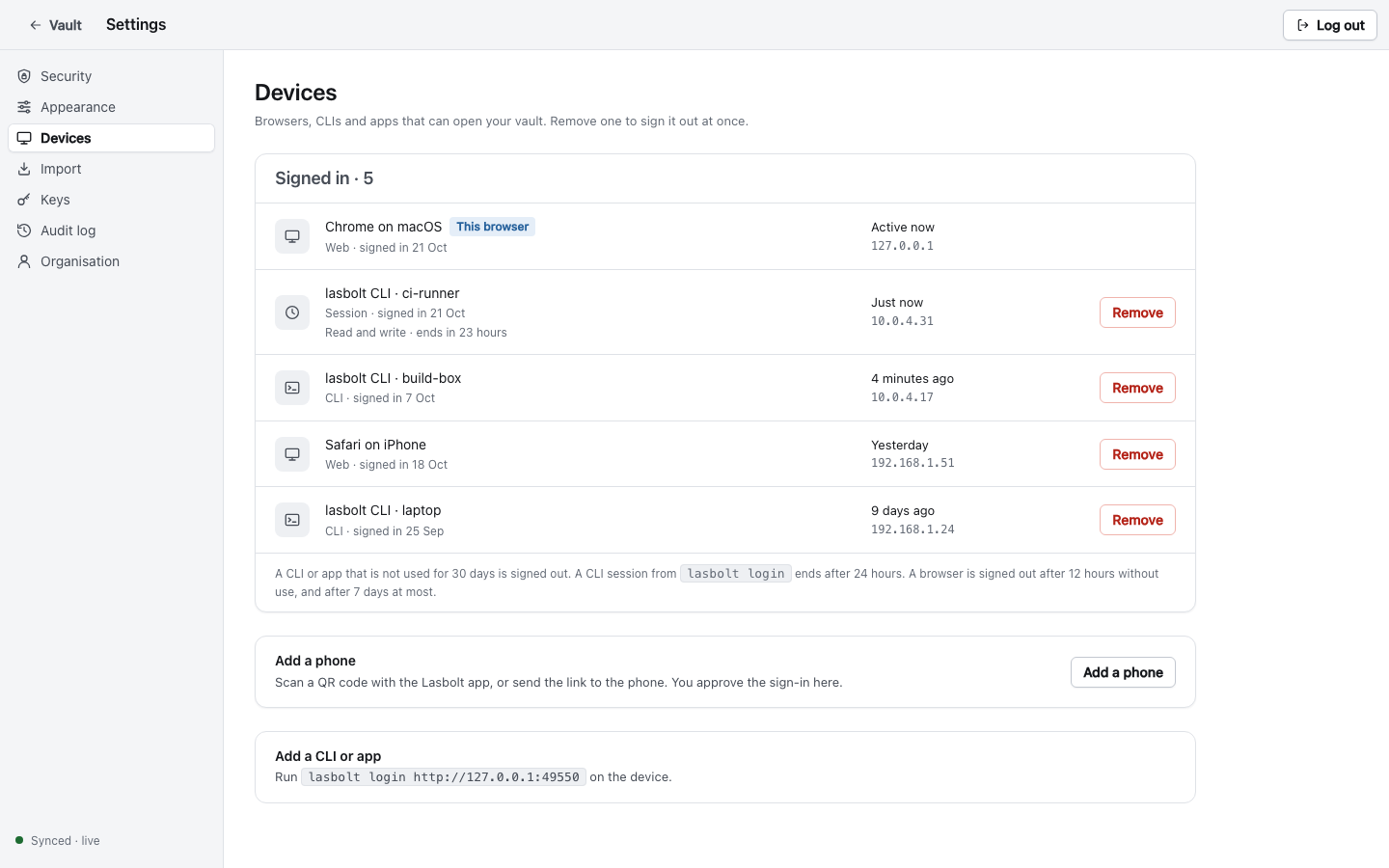
You see all devices in Settings > Devices.
Two ways to sign in
| Way | Use it for | What the device gets |
|---|---|---|
| Approve in the browser (device code) | The CLI, a phone, a script that you start | Limited access and a limited time. You choose. |
| Master password | A machine without a browser | Full access as you. Stays signed in until it is idle for 30 days. |
The approval way is the default. The device never sees your master password. You approve in a browser that you already trust.
Approve a sign-in (device code)
Start the login on the new device
On the CLI, run lasbolt login <server URL>. The CLI opens your browser. If it cannot, it prints an address and a code. You can force this with --no-browser. On a phone, the app starts the same flow.
Compare the codes
The approval page shows a code. The new device shows the same code. Check that they are the same.
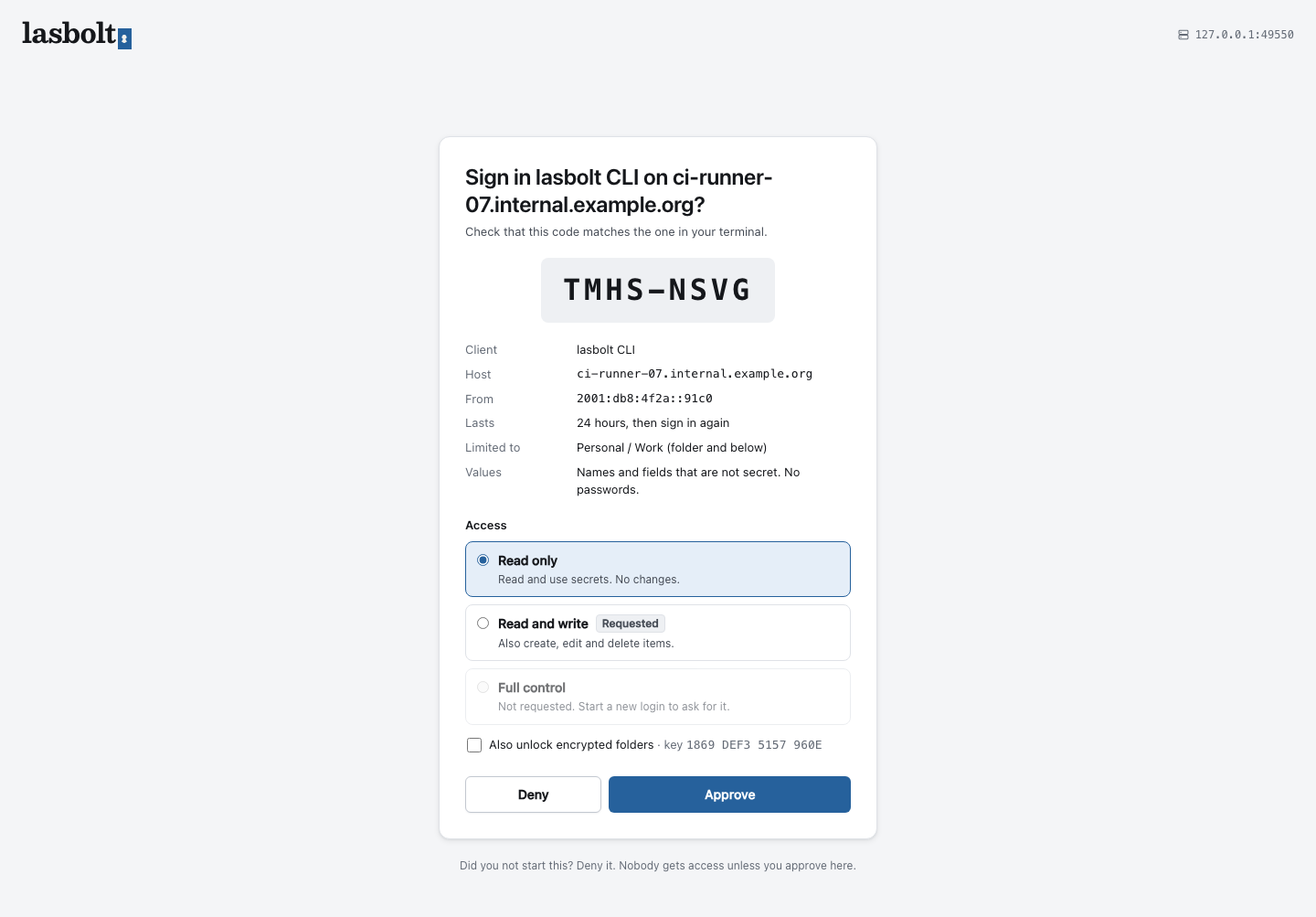
The page also shows the client, the host name, the address it came from, how long the session lasts and what it is limited to.
Choose the access
Pick Read only, Read and write, or Full control. You can lower the access that the device asked for. You cannot raise it. To unlock end-to-end folders for the device too, tick Also unlock encrypted folders and compare the key fingerprint that the page shows. Your browser must be unlocked for this.
Approve or deny
Click Approve. Click Deny if you did not start the login. Nobody gets in unless you approve.
A session from lasbolt login lasts 24 hours. It then needs a new approval. The access token inside it renews every hour.
Add a phone
You can sign in a phone with a QR code. The phone needs the Lasbolt app. See iOS app and Android app.
Show the code
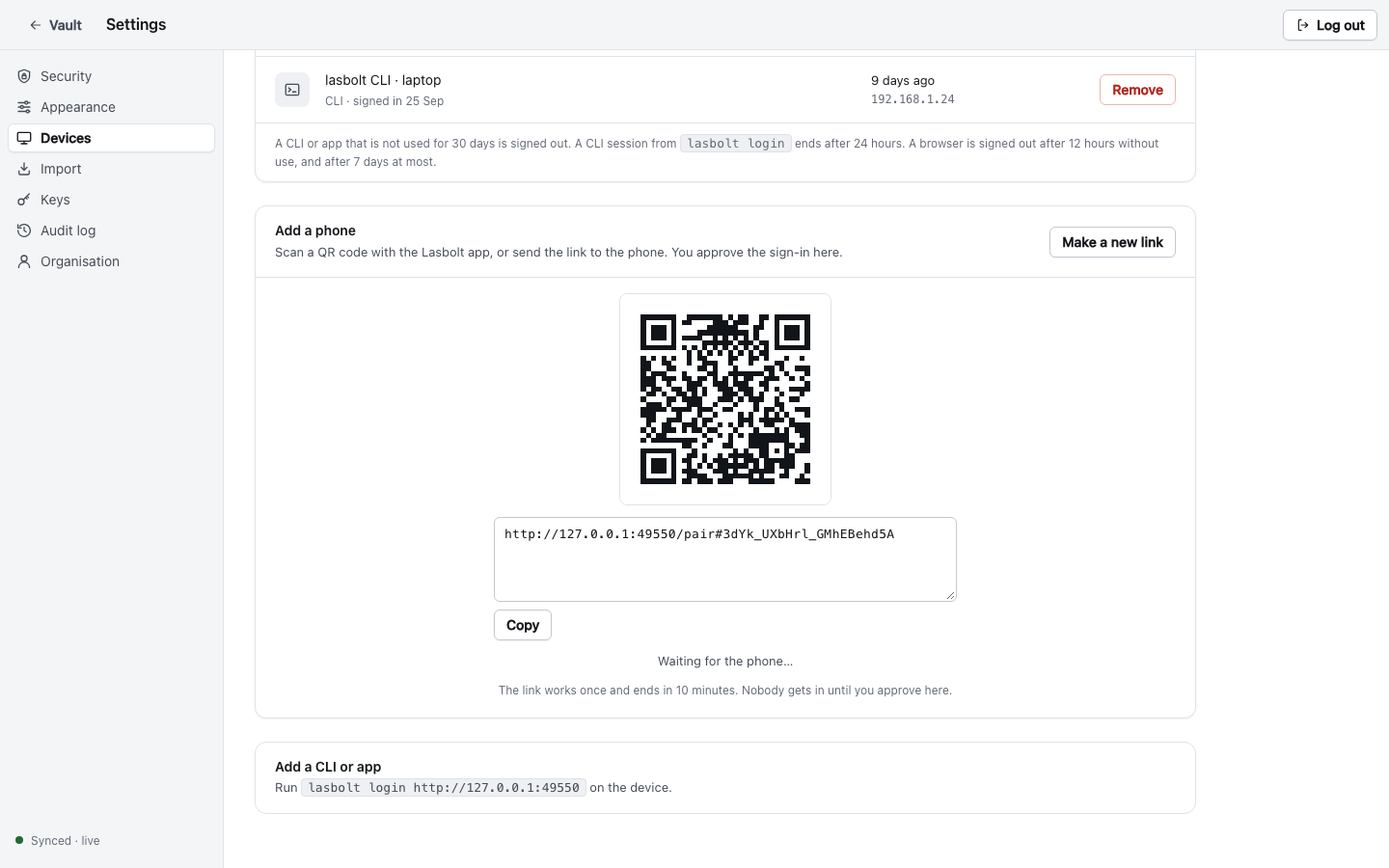
In the web app, open Settings > Devices and click Add a phone. A QR code and a link show up.
Scan it
Scan the code with the phone camera, or in the app (Scan a QR code). You can also copy the link and send it to the phone. The link works once and ends after 10 minutes.
Approve the phone
The web page shows the approval for the phone. Compare the code and approve, as above. If your browser has the end-to-end folders open, the phone gets them at once. Else the phone asks for your master password when you open such a folder.
Send someone the link to the app
Every server has the page https://<your server>/app. It has the steps to install the app and a button Open in the Lasbolt app. The button opens the app with your server address filled in. The link lasbolt://connect?server=<https address> does the same. The app accepts only an https server address. A plain http server needs a setting in the app.
Sign in with the master password
Use this only where the approval way is not possible. The CLI asks for the master password:
lasbolt login --password --user <name> <server URL>This device has full access. If you turned on two-factor authentication, it asks for the code too. With this login, the CLI makes its own keys from your password. It does not depend on the keys that the web page gives. It is the strongest way against a bad server.
Remove a device
Click Remove next to the device in Settings > Devices. The device is signed out at once. Its tokens and its key grants are deleted.
When a device signs out by itself
| Device | Ends when |
|---|---|
| Browser | 12 hours without use, or 7 days after sign-in |
CLI session (lasbolt login) | 24 hours after sign-in |
| CLI or app (password login) | 30 days without use |
See what a device did
Settings > Audit log lists logins, approvals, secret reads by sessions and keys, and revocations, with the device and the address. It never shows a secret value.