Import from Bitwarden
Use this guide to copy your data from Bitwarden into Lasbolt. Lasbolt reads a Bitwarden export file. It does not talk to the Bitwarden service.
Export from Bitwarden
Export your vault from Bitwarden in one of these formats:
| Format | Works | Notes |
|---|---|---|
| JSON | Yes | Not encrypted. Delete the file after the import. |
| JSON, password protected | Yes | Lasbolt asks for the file password. |
| CSV | Yes | Logins and notes only. |
| ZIP | Yes | Lasbolt reads the JSON in it. It does not import the attachment files. It counts them in the report. |
| JSON, account restricted | No | Only your Bitwarden account can open it. Export again as plain or password protected JSON. |
What Lasbolt makes of the items
| In Bitwarden | In Lasbolt |
|---|---|
| Login | Login with username, password, TOTP secret and one URL field for each address |
| Secure note | Note |
| Card | Card |
| Identity, SSH key, bank account, licence, passport | Note with one field for each value. The secret values are secret fields. |
| Custom fields | Fields. Hidden fields become secret fields. Linked fields are skipped. |
| Old passwords | One secret field named “Earlier passwords” |
| Folders and collections | Folders below one new folder, “Imported from Bitwarden” and the date. A / in a name makes a sub-folder. |
| Passkeys | Not imported. Lasbolt does not store passkeys yet. |
| Master password re-prompt | Not copied. Set an approval on the item if you need it. |
| Deleted items | Skipped, unless you ask for them. They go to the Lasbolt trash. |
The report tells you what it skipped and why.
Import in the web app
Open the page
Go to Settings > Import.
Choose the file
Click Choose File and pick the export. The file can be 32 MiB at most. Your browser reads the file. The file is not uploaded. For a password-protected file, enter its password. Then click Open the file.
Check the report
The page shows the file type, the number of items of each type, the folders, the old passwords, and a list of warnings. To bring the Bitwarden trash too, tick the box for it.
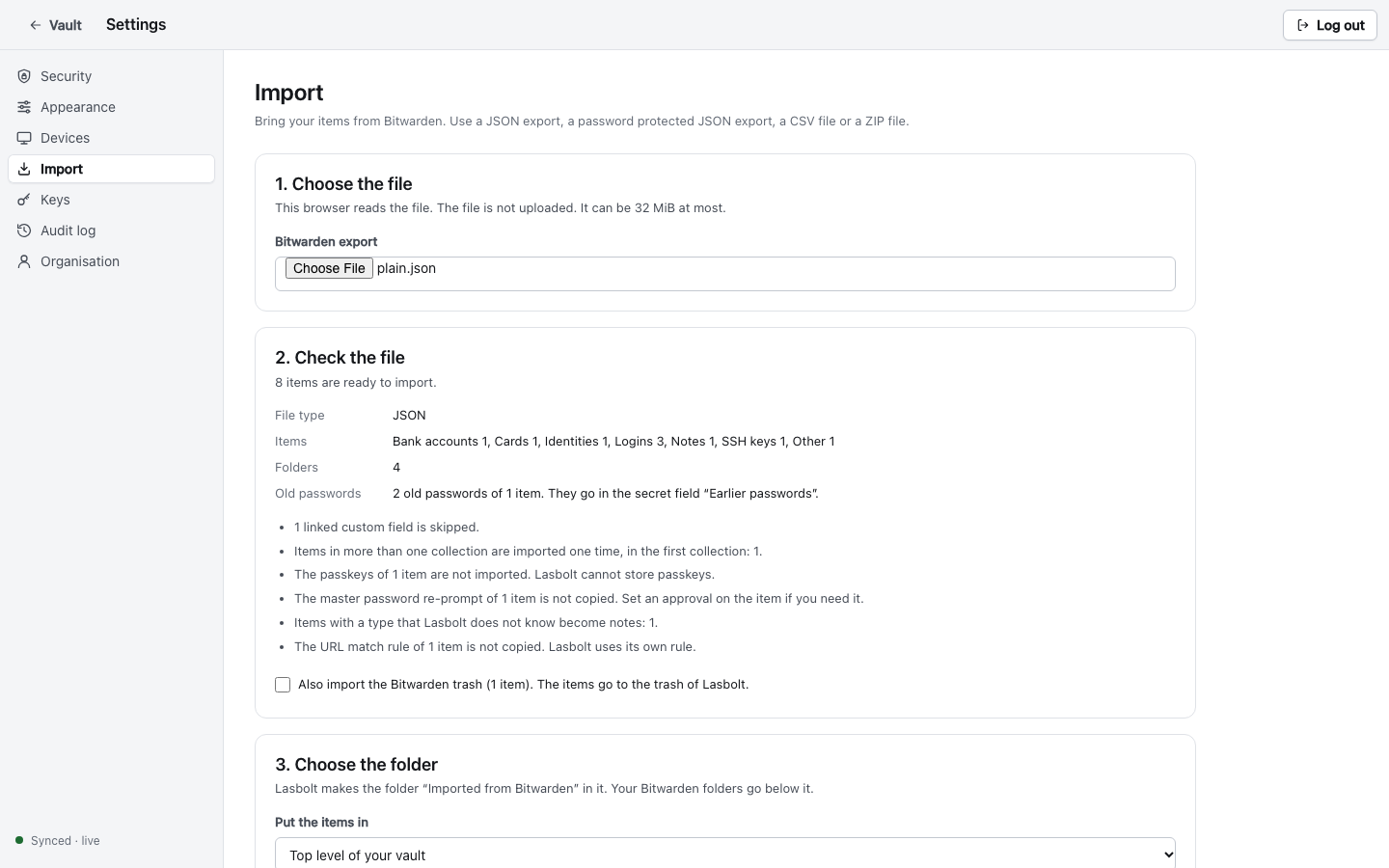
Choose the folder and import
Choose where the items go: Top level of your vault, a plain folder, or an end-to-end folder. Then click Import.
- For a plain folder, the server stores the items, and it can read them.
- For an end-to-end folder, your browser encrypts the items first. The page asks for your master password if the tab is locked. The server gets no plain text.
Import with the CLI
First look at what would happen. --dry-run writes nothing:
lasbolt import bitwarden export.json --dry-run[dry run] Format: json. Target: Personal (plain), folder "Imported from Bitwarden 2026-10-21".
[dry run] Would import 2 of 3 items.
[dry run] login: 1
[dry run] note: 1
[dry run] Not read from the file: 1.
[dry run] Old site: deletedThen run the import. --into names a folder. The default is the root of your personal space.
lasbolt import bitwarden export.json --into Personal| Flag | Use |
|---|---|
--into FOLDER | A path, or a lasbolt://id/... reference. An end-to-end folder works. |
--dry-run | Print the report. Write nothing. |
--include-deleted | Also import the Bitwarden trash. |
--skip-existing | Skip an item that already exists. |
--json | Print the result as JSON. |
For a password-protected file, the CLI asks for the password. You can also set LASBOLT_IMPORT_PASSWORD or give the password on the first line of stdin. There is no flag for it, because a flag shows in the process list.
After the import
- Open the new folder and check a few items.
- Delete the export file.
- Delete the vault in Bitwarden only when you are sure that all items are in Lasbolt.
- Make a backup.