Teams
A team is a group of users. You give a team one role in a space. Everyone in the team gets that access. A new team member needs one key step, not one for each space.
Use a team when the same people need many spaces, for example “Support” or “Platform”.
How it works
A team has a box key (a key pair for encryption). The private key is sealed to each member. The folder key of an E2E folder is sealed to the team key. A member opens a folder in two steps: own key, then team key, then folder key.
Each team has managers and members.
| Team role | Can do |
|---|---|
manager | Add and remove members. Make a new team key. |
member | Use the access of the team. Cannot manage the team. |
A team has at most the space role writer in a space. A team cannot be an admin or owner of a space. Those roles are for people.
Make a team
An instance owner or admin can make a team.
Open Teams
Click Teams in the sidebar. A dialog opens with the list of teams.
Make the team
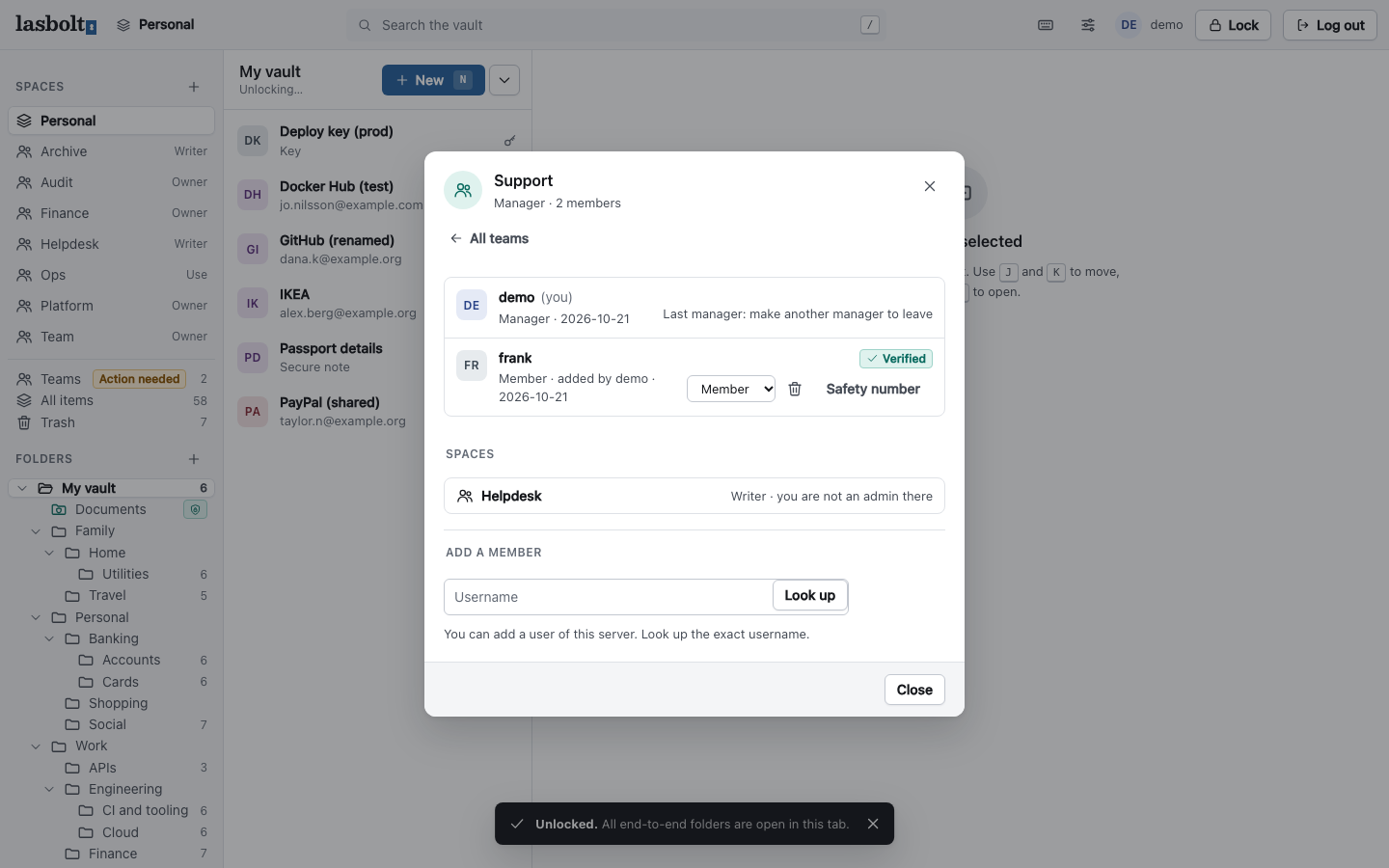
Click New team. Enter a Name and click Create team. You become the first manager. An instance role gives no team key, so an admin who is not in a team cannot open its folders.
Add members
Open the team. Under Add a member, enter the exact username and click Look up. Compare the safety number with the person, as in Shared spaces. Tick the box and add the person.
Give a team a role in a space
You must be an admin of the space.
- Open the space. Click Members in its header.
- In the section Teams, pick the team and a role (
use,readerorwriter). - Click Add team.
The members of the team show in the member list with “through the team
Remove a person from a team
Only a manager removes a member. A member cannot leave a team. A manager can leave unless they are the last manager.
When you remove a person, Lasbolt must make a new team key and new keys for the folders of the team. The dialog shows the cost: “N spaces will get new keys”. Confirm to run it. Your browser makes the new keys now.
If a space has no admin in your team, its admins see the banner “N folders need new keys”. They click Renew keys.
When a team needs a new key
The sidebar shows Action needed next to Teams when:
- A manager removed someone and the new team key step did not finish.
- A member changed their account keys, for example after a key rotation. The member then cannot open the team folders until a manager acts. A manager sees “N members need the team key again”.
A manager clicks Make a new team key. It gives each current member a new copy of the key, and it renews the keys of the spaces of the team where the manager is an admin.
Limits
- A team cannot be deleted yet.
- A member who waits for the team key sees “Waiting for the team key” on the folders.