Quickstart
This page takes you from nothing to a working vault on your own computer. It takes about five minutes. It uses dev mode: plain HTTP on the loopback address and a fixed server key. Dev mode is for trying Lasbolt. Do not use it for real data. For a real server, read Install.
You need Go and make. There is no release yet, so you build the programs from the source.
Build the programs
Run this command in the folder of the source code:
make buildIt makes three programs in bin/: lasboltd (the server), lasboltctl (the control program for the server) and lasbolt (the CLI).
Start the server
bin/lasboltd --dev --addr 127.0.0.1:8080 --data-dir ./lasbolt-demoThe server prints a warning that dev mode is on, and then a line with listening. Keep this window open.
Make the first owner
Open http://127.0.0.1:8080/ in a browser. The server sends you to the Create your account page. Registration is open for the first user only. That user is the owner of the server.
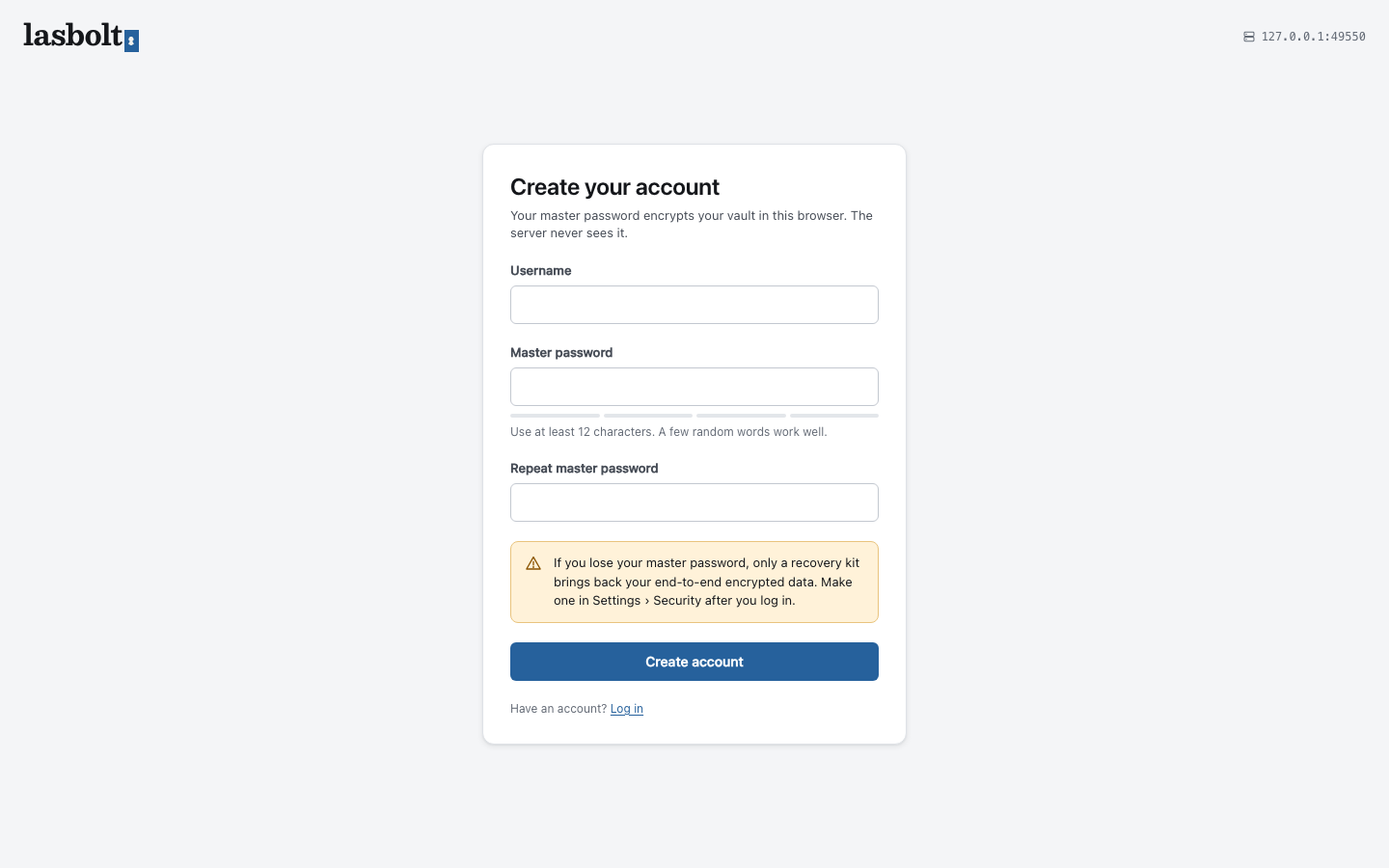
- Enter a Username.
- Enter a Master password and repeat it. Use at least 12 characters. A few random words work well.
- Click Create account.
The browser makes your keys on your computer. The server never gets the password. The vault opens.
Add an item in the web app
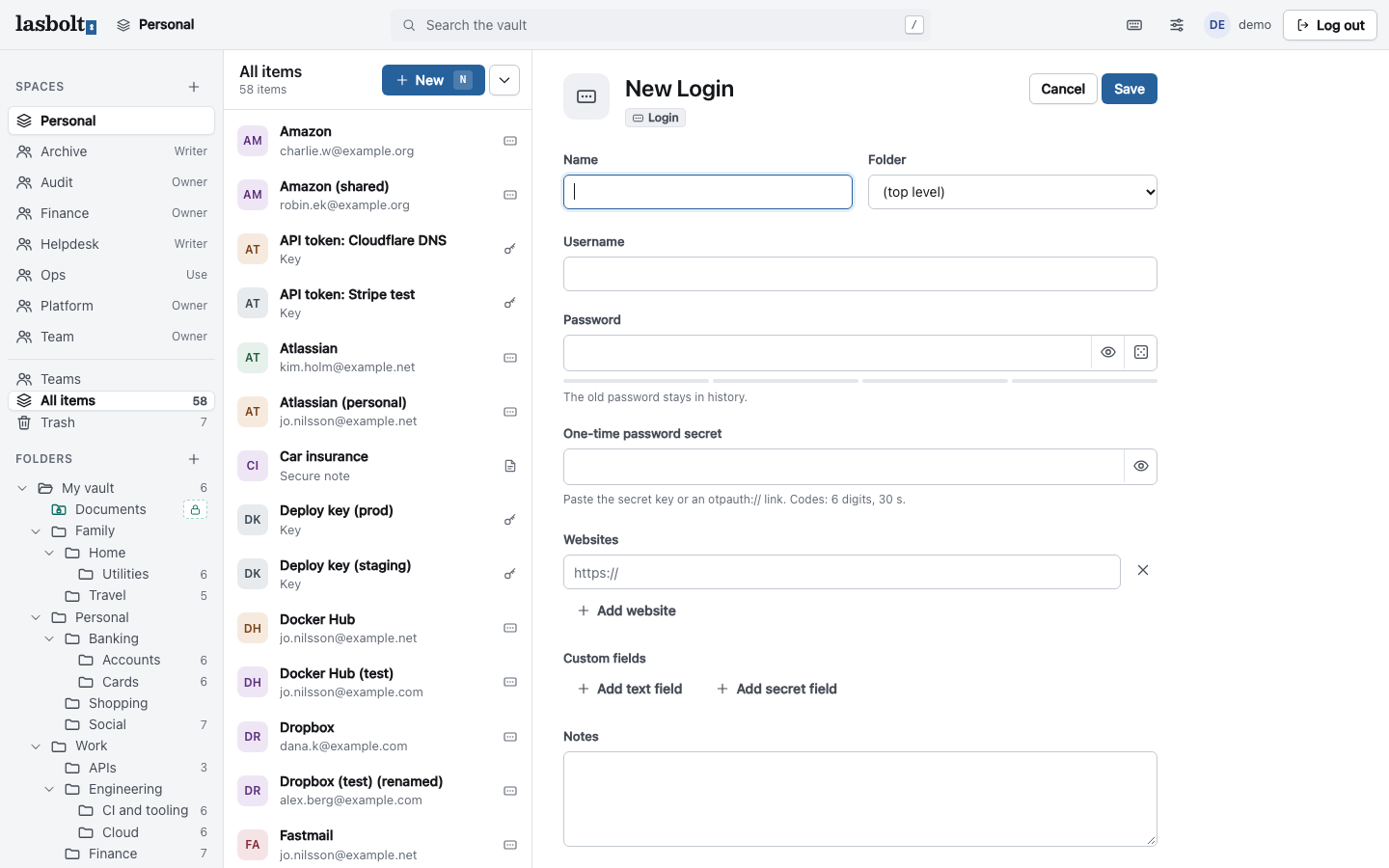
- Click New item (or press
N). - Enter a Name, for example
example-site. Leave Folder at the top level. - Enter a Username and a Password.
- Click Save.
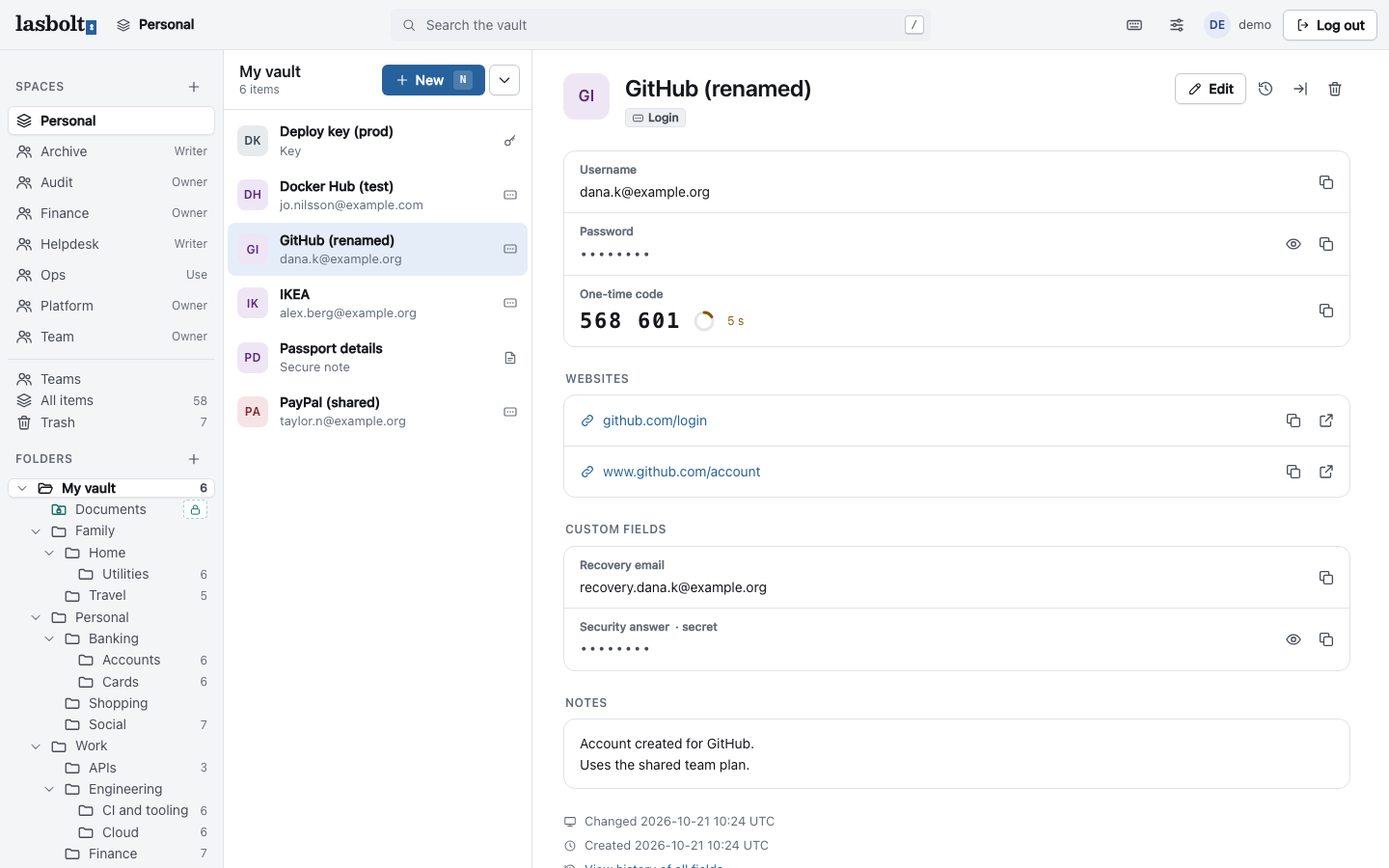
The item shows in the list. Click it to see its fields.
Log in with the CLI
Open a second window in the same folder. Start a login:
bin/lasbolt login http://127.0.0.1:8080The CLI opens your browser. If it cannot, it prints the address and a code:
To sign in, open this address and approve:

  http://127.0.0.1:8080/approve?code=NPDZ-ZGDJ

The page must show the code NPDZ-ZGDJ.
Check that the code on the page is the same as the code in the terminal. Then click Approve. A login from lasbolt login is read-only and ends after 24 hours. Add --access write to the command if you want to change items from the CLI.
Check the login:
bin/lasbolt statusOn a machine without a browser, use lasbolt login --password --user <name> <server URL>. It asks for the master password, and the device gets full access.
Read a secret
List your vault. The personal space is called Personal:
bin/lasbolt ls Personal
bin/lasbolt show Personal/example-site
bin/lasbolt read Personal/example-site/password
show hides the secret values. read prints one value.
Give a secret to a program without printing it:
bin/lasbolt run --env SITE_PASSWORD=lasbolt://Personal/example-site/password -- sh -c 'test -n "$SITE_PASSWORD" && echo set'The program gets the value in its environment. lasbolt run hides the value if the program prints it.
Next steps
- Install a real server with TLS and backups.
- Import your passwords from Bitwarden.
- Set up AutoFill in your browser or on your phone.
- Give an AI agent limited access.